
Overview
As a startup founder, I get slammed with tasks to do everday. Theres so many different methods to manage your time. Pomodorro, Calendar, traditional TODOs list, etc. And, theres not a lot of clear webapps that can organize my thoughts in building a business. That is, without charging you or limiting core features.
I want to go back to the good old days of using single-use apps that don't require cloud hosting. Hosting on the cloud is great and has many benefits. But not for what I need. That’s what Errday is for. Completing tasks ‘Errday’.
Design
The app was made for users to complete 2-3 steps. The first step was to brainstorm all of your ideas and collect your thoughts in the home page of Errday. Then, you click “Matrix Protocol” to see the Eisenhower Matrix in action.
By default, all of your tasks/ideas/obligations and more are in it’s own section. You must drag and drop each task into its own box. Traditionally, this would require stickie notes and a marker, but you don’t need that anymore. The 3rd step isn’t required but recommended. The Calendar.
Click calendar to see your tasks (only priority) ready to be dragged and dropped into the weekly calendar view so you can time block your life. You can export your final schedule into the .ics file and import to Apple Calender, Google Calendar, Outlook and more.
NOTE: The upcoming screenshots are from version 1.2.4.
Brainstorm
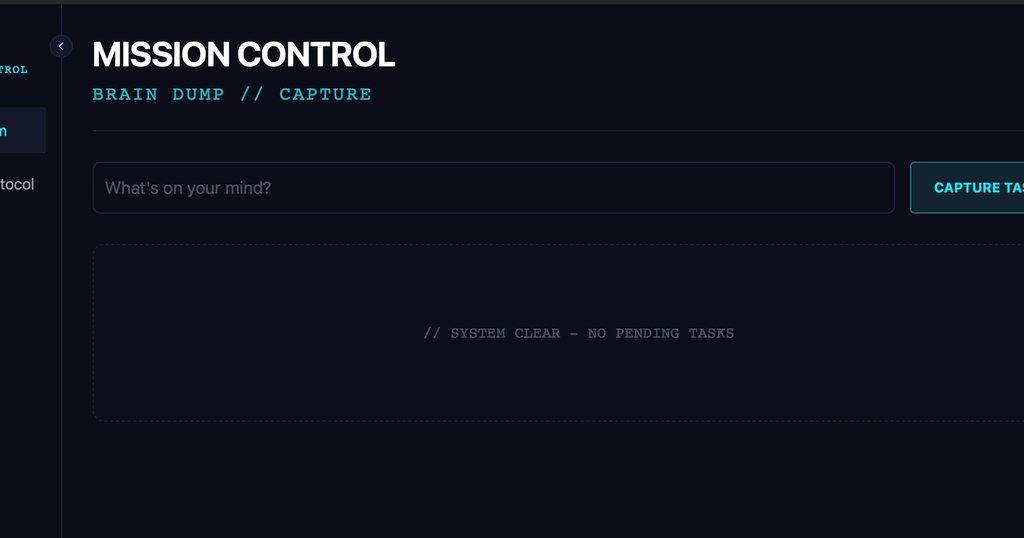
The following image shows a single text field used to add as many ideas you can provide.
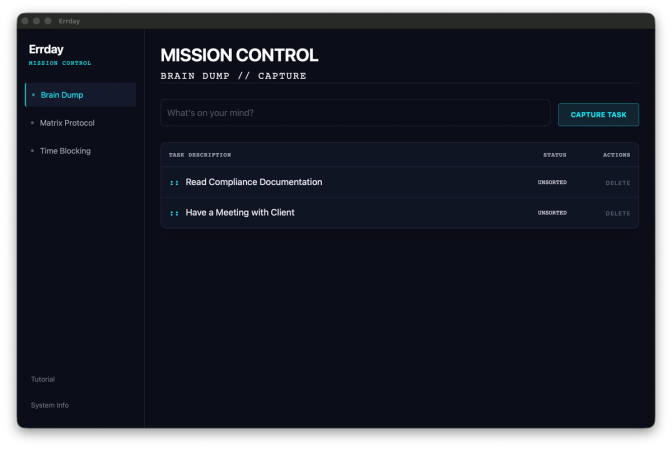
DO NOT limit your ideas! You can always delete them later. Brainstorm is basically a place to dump everything in your mind. You don’t need to organize anything. Note, this is a Rust binary where the data is locally stored. So all of your secrets are kept with yourself.
Matrix Protocol
This page is where you will start sorting your tasks into their correct place.
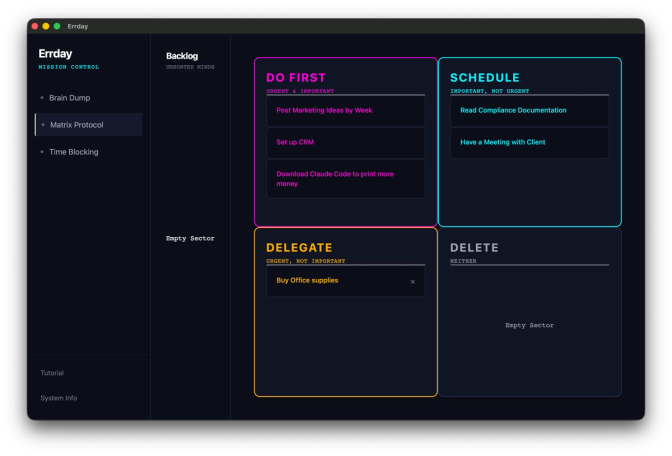
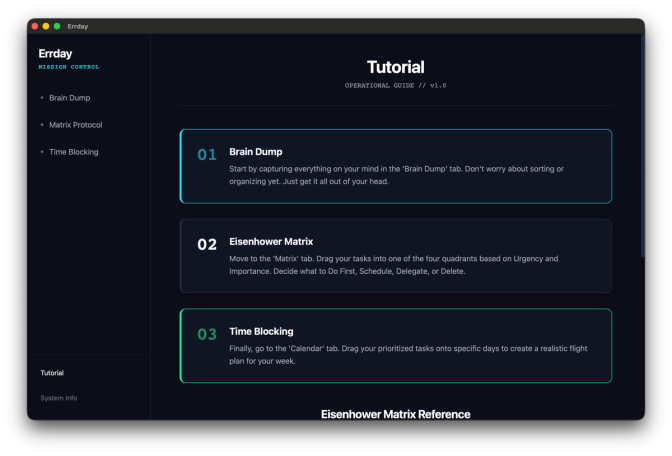
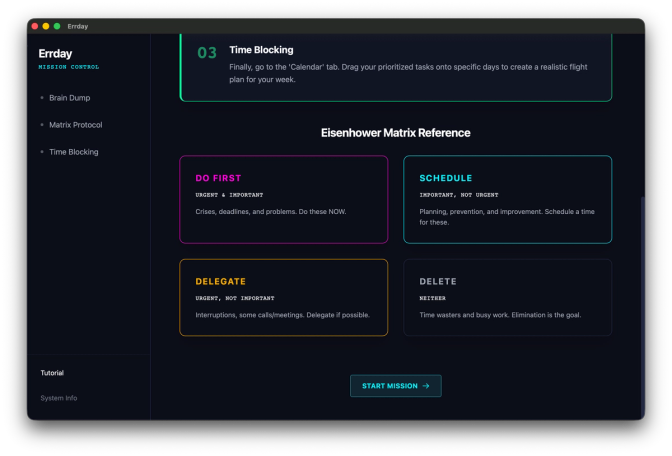
For those unfamiliar with the Eisenhower matrix, I’ve included a tutorial and reference in “Tutorial” located in the bottom left hand corner. It’ll summarize what this methodology means.
Calendar
This section isn’t technically required to “complete” a task. You could only use the Eisenhower Matrix and live with it.
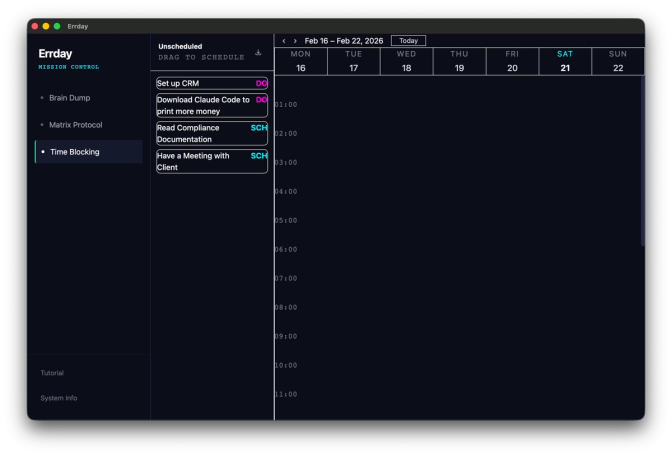
Adding a calendar goes the extra mile with pairing the Eisenhower Matrix with another working time management technique, “Time Blocking”.
Tutorial
Below is what new users can refer to when forgetting what each box means in the Eisenhower Matrix.
Credits
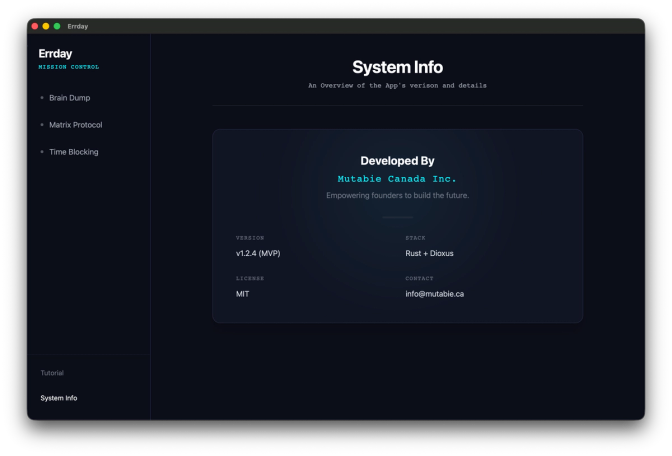
This area did get a title change in a later version
Download
Check out current releases as Errday regularly gets updates. Thank you for reading about Errday. I hope this tool can release some stress in your life, like how it did for mine.
https://github.com/Mutabie-Canada-Inc/Errday/releases
P.S Current builds are for MacOS only. Linux is being compiled at the moment and Windows will come soon.
How to Install
Step 1 - Download from Github
After clicking on the link above, choose which CPU architecture works on your machine. If you have an Apple Silicon machine (M1, M2, M3, M4, etc), then choose the ARM/AARCH DMG file. If you’re running intel, then choose x64/x86. Technically, Intel apps can run on Apple Silicon (assuming Rosseta is installed). I recommend you download the ARM compiled application for Apple Silicon.
Step 2 - Open DMG File
Double Click on the .dmg file to find the app and your applications folder. Drag the app into your applications folder like most apps (that aren’t on the App Store)
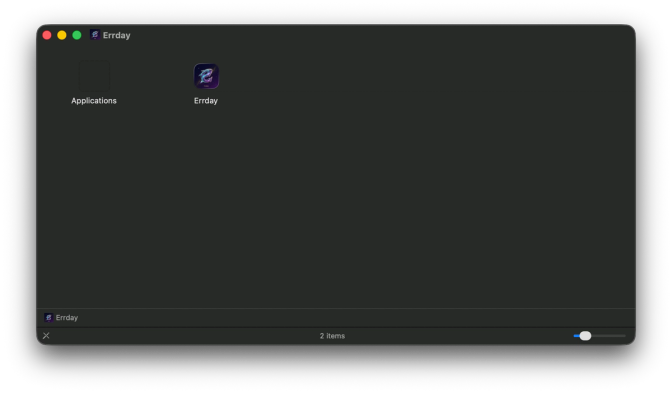
Ignore the Applications folder not having an icon…
Step 3 - Allow Errday to run (FINAL STEP)
The last step is annoying but critical. Heres a list of buttons you should press to allow Errday to run:
Apple Icon (top left corner) > System Settings > Privacy & Security > Security
Scroll all the way down to the ‘Security’ section and hit ‘accept’ (or whatever Apple says to allow you to install Errday).
You have to do this elaborate step because ain’t nobody spending $100 to sign an open source app to become “legitimate”. There is no malware you’re installing. It’s just Apple labeling everything that isn’t Apple-like as “suspicious”. Then, eject Errday in Finder or menu bar.
Congratulations! You installed Errday!
If you have feedback, email the company at info@mutabie.ca or DM me @edwardnaidoo on LinkedIn.
